Local MCP automation
Experimental. This feature should work, but it is still new: its commands, tool names and arguments may change in a future 1.x release without a major version bump. See stability.
Eraser’s MCP server lets a local Codex agent work through removal follow-ups while you review batches and handle verification. It reuses your profiles, SMTP/IMAP settings, broker list, SQLite history, and web UI. There is no separate AI provider or API key to configure in Eraser.
Connect Codex
- Build this version with
go build -o eraser ./cmd/eraser. Install Chrome or Chromium if you want to automate forms. - Complete Eraser’s existing setup (
./eraser serve) if needed. Existing users can keep their email configuration and selected regions/template, including EU/EEA settings. MCP does not change these defaults. - Merge examples/codex-mcp.toml into your Codex
user config or this project’s
.codex/config.toml. Replace the executable path with an absolute path. Keep machine-specific configuration out of Git. - Check
codex mcp get eraser. Start a new local Codex session if Eraser is not in the current session’s tool list.
Codex supports local STDIO servers and per-tool approval settings in its
official MCP documentation.
Other tools can use approve: the server rejects form actions and sends until
a batch exists, and enforces that batch’s scope afterward.
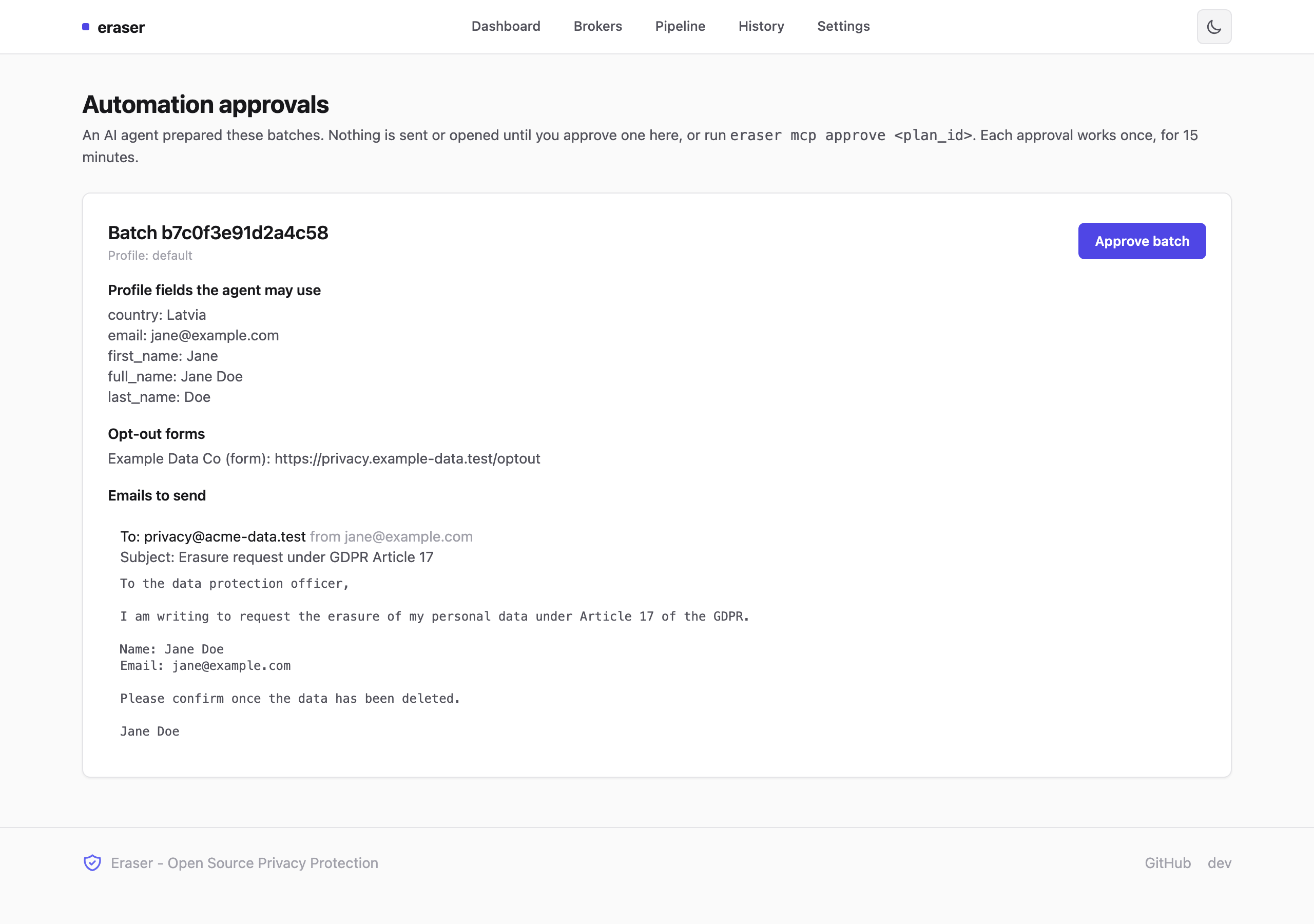
Batches and retries are approved in Eraser, not in the MCP client. begin_batch
and retry_action only work after a person approves the preview, or the retry,
on the Automation page of the web UI or with eraser mcp approve <id> in a
terminal. A client that auto-approves every tool therefore cannot start a batch
or release a retry by itself.
That separation has limits. eraser mcp approve refuses to run without a
terminal, and the web page only accepts a browser’s same-origin form post, but
an agent that can run commands or drive your browser can still approve its own
batch. Don’t give the agent a shell or browser for the same session, or keep
those tools on a prompt in your client.
Use --config /absolute/path/config.yaml if the web UI uses a non-default
configuration. Use --profile <id> when several profiles exist; Eraser refuses
to guess. --chrome-path selects a nonstandard browser executable. Leave Chrome
visible for manual verification; --headless is intended for fixture tests or
workflows that do not need intervention. Keep stdout reserved for MCP messages;
diagnostics go to stderr.
Try fictional data first
Set the MCP arguments to ["mcp", "--demo"], or add a second server named
eraser_demo with those arguments and the same two tool approval overrides.
Restart that server to create a fresh demo.
Ask Codex:
Use Eraser’s demo. List the pending tasks, prepare the simple form and multiple-step form as a batch, and show me the fake profile and destinations. After I approve, complete them and record the evidence.
The demo includes a simple form, multiple steps, required-field validation, simulated human verification, a confirmation link, and a rejected submission. It uses a fictional Norwegian profile and a private temporary directory. No real SMTP, IMAP, or broker connections occur. The only HTTP destination allowed for the fixtures is the demo’s own loopback listener.
get_status returns demo_config_path. To view the same results in Eraser, run:
./eraser --config /path/returned/by/get_status/config.yaml serve --port 8081
Keep the MCP process running while interacting with the demo forms. The data and screenshots remain in the printed temporary directory after it ends, so you can review them in the web UI; remove that directory when finished. A restarted demo has a new directory and new local URLs.
Normal workflow
Ask “Handle my pending removal tasks.” The agent should:
- Read status and pending tasks. Optionally scan new replies first.
- Prepare explicit task IDs, and explicit broker IDs only when you also want
new removal emails. Show you the profile fields, destinations, and email
drafts returned by
prepare_batch. - Ask the user to approve that preview. They approve it on the Automation page
in the web UI, or with
eraser mcp approve <plan_id>, and you then callbegin_batch. Each approval starts one batch, expires after 15 minutes, and covers only those tasks and email recipients in that profile.eraser mcp pendinglists previews waiting for approval. An approval cannot be spent by a different preview or after the profile or broker settings change. - Open a task, inspect its text and controls, then fill/select or click using
references from the latest snapshot. Personal values can be filled by
profile_fieldwithout the agent inventing missing information. - After each click, record visible evidence of progress, acceptance, or a
problem.
get_screenshotreturns an MCP image for visual inspection. - End the batch after reporting completed tasks and those needing your help.
Previews expire after 15 minutes. A batch can contain up to 100 explicit items and have at most five browser sessions open. Settings or broker-list changes require a new preview. Ending the batch, disconnecting STDIO, or restarting the process closes its browsers and revokes authorization. Cookies and intermediate form state live only for the current browser session.
Tools
| Tools | Purpose |
|---|---|
get_status, list_brokers, list_tasks, get_task | Inspect the selected profile, eligible brokers, task details, source replies, and previous attempts. Lists are paginated. |
prepare_batch, begin_batch, end_batch | Preview explicit work, start it once approved in Eraser, and revoke authorization. |
scan_inbox | Read the configured inbox and classify replies for the selected owner; never archive or open links. |
send_request | Send one reviewed email through the existing sender, respecting manual mode, dry-run, cooldown, daily cap, and rate limit. |
open_task, observe_page, get_screenshot | Open an approved form/link and inspect the persistent browser. Opening a confirmation URL can itself perform an action. |
browser_action | fill a text field, choose a select option by value/text, set a checkbox/radio using true/false, or click a current control. No arbitrary JavaScript or selectors. |
record_result | Save progress, submitted, needs_user, or unknown with evidence against the existing task. |
retry_action | After a separate user approval, release an uncertain attempt for retry using its action key and either an approved task_id or broker_id. Accepted submissions cannot be released. |
Evidence, interruptions, and privacy
Submission completes the task, not the data removal. An email send means SMTP accepted a message. A form receipt means the request was accepted. Existing pipeline records move to Awaiting response after form acceptance, never automatically to Confirmed from a form click. The existing reply classifier still handles brokers’ later confirmation emails. Form-only work is visible in Tasks even when there is no previous email record in Pipeline.
The action journal is written before a click, confirmation GET, or email send. If the process crashes or the result is uncertain, the agent must inspect the page, mailbox, and previous attempts before proposing a retry. An observation does not release that safeguard. Native invalid forms can be corrected without submitting them; server-side rejection or ambiguous receipts stay open for review. The current receipt check is conservative and recognizes English acceptance text; other languages may need manual review. The agent quotes the receipt text from an untrusted page, so a page can phrase a fake receipt that the check accepts. The evidence is recorded for you to read, not as proof.
For CAPTCHA, login, identity documents, or missing profile information, the
agent stops. Complete the step in the visible browser, then ask it to
observe_page and continue. It never solves CAPTCHA or uploads identity files.
Embedded frames, custom controls, shadow DOM, and popup-based workflows may
need manual completion; only standard visible controls in the main document
are automated.
Destinations come from that broker’s trusted local website and opt_out_url:
exactly those hosts and their www. form, not subdomains and not domains
invented by an agent or extracted from email. On shared privacy and form
platforms (OneTrust, TrustArc, Google Forms, and similar) a subdomain or a
sibling path is another company’s form, so page loads there also stay under the
catalog entry’s form path (its first two path segments). The connected IP
address is checked too: a page served from a private address stops the session
and is not shown to the agent. URLs need HTTPS and a public address. Redirects,
frames, subresources, and form traffic outside those hosts are blocked. This
deliberately also blocks third-party CDNs and verification services not covered by the catalog;
some real sites will need manual handling. An unexpected destination pauses
the session persistently. Review the catalog independently, end the batch, and
prepare a fresh one after correcting a legitimate portal URL. The agent cannot
expand the domain scope through a tool call.
SMTP/IMAP passwords, browser cookies, and password-field values are not returned by tools. Profile details, page text, email bodies, confirmation URLs, and screenshots can contain personal data and are provided to the MCP client/model when requested. Treat all broker email and page content as untrusted data. Screenshots are withheld while recognized credential or identity fields are visible, including password and one-time-code fields. Local history and screenshots remain sensitive files under the existing Eraser configuration directory. Use one automation workflow at a time: the journal coordinates MCP actions, while manually submitting a form in another browser or sending through another UI is outside its duplicate protection.
Known limits
This feature is experimental. It should work, but these limits are known:
- Tested mostly on fixtures. It has run against the fake-data demo and local test forms with Codex. Real broker forms, other MCP clients, and macOS or Windows (CI runs Linux) are less tested.
- Some real sites will be blocked. Only the catalog’s exact hosts (and their
www.form) are allowed. Third-party CDNs and verification services outside the catalog are blocked, and on shared platforms such as OneTrust page loads must stay under the catalog entry’s form path. - You still handle the hard parts. CAPTCHA, login, identity checks and embedded forms need you.
- Receipts are judged in English only, and a completed form means the request was accepted, not that the broker erased your data. Anything it can’t confirm stays unknown for you to review.
- Approval has limits. The agent can’t approve its own batch through MCP tools, but one that can run commands or drive your browser could.
- One of everything: one client session per server process, one batch at a time, and at most five open tasks.
Feedback
Tried it? Whether it worked or not, tell us through the
MCP feedback form.
Include the client you used, your Eraser version (eraser --version) and the
broker involved. Don’t paste personal data. Report security problems privately,
following the repository’s security policy.
Contributor verification
go build -o eraser ./cmd/eraser
go vet ./...
go test -race ./...
golangci-lint run
./eraser validate-brokers
Browser tests use an installed Chrome/Chromium; set ERASER_TEST_CHROME to its
absolute executable path if needed. Local browser tests skip when Chrome is
unavailable, while CI requires it. Tests exercise real MCP schema discovery,
profile isolation, batch scope and expiry, durable duplicate prevention, SMTP
limits/recovery, and the local forms with Chromium. No real mailbox or broker
is needed. Verify the demo’s completed tasks, screenshots, and pending review
in the existing web UI before trying a small, explicitly approved real batch.